Ever wanted to save a video or photo you posted on Rednote but couldn't find the original file? Maybe you've switched phones, cleaned out your gallery, or simply want to keep a backup of your content.
Rednote, also known as Xiaohongshu, is a popular platform for sharing photos, videos, and everyday experiences. But if you want to keep your posts outside the app, it's worth knowing how to save them properly.
In this guide, we'll walk through the different ways to download your own Rednote videos and photos, where to find the saved files, and what to try if something doesn't work.
Why Download Your Own Rednote Content?
Even if your posts are still available on your profile, keeping a separate copy is a smart idea.
Here are a few reasons you might want to save them:
- Keep a backup. Protect your photos and videos in case you lose access to your account.
- Free up your workflow. Keep published content organized on your computer instead of searching through old posts.
- Reuse your original work. Access your own photos and videos when preparing content for another project.
- Save important memories. Keep personal videos and photo collections available offline.
One thing to remember: a downloaded post isn't always identical to the original file. Platforms may compress uploaded media, so it's best to keep your original photos and videos whenever possible.
Method 1: Save Videos and Photos Through the Rednote App
The easiest place to start is Rednote itself. Depending on the type of post and your app version, you may find a built-in option to save media.
Step 1: Find Your Post
Open the Rednote app on your iPhone or Android phone and sign in to your account.
Go to your profile and open the video or photo collection you want to save.
Step 2: Open the Post Actions
Open the post's action menu by tapping the share icon or the control your version of Rednote uses for sharing.
Look for an action that saves the media to your device. Its name and availability can differ by operating system, app language, region, post type, and Rednote version.
If your version offers an on-device save action, select it and follow the instructions shown by the app. If it does not, continue with the browser method below.
Step 3: Check Your Gallery
Once the process finishes, open your phone's Photos or Gallery app to see whether the media was saved.
If you can't find a download option, don't worry. It may simply not be available for that particular post. You can try the browser method below if your content is publicly accessible.
Method 2: Download Your Rednote Posts Using a Browser
If the app doesn't offer a suitable saving option, a browser-based Rednote downloader may be another way to save your publicly available posts.
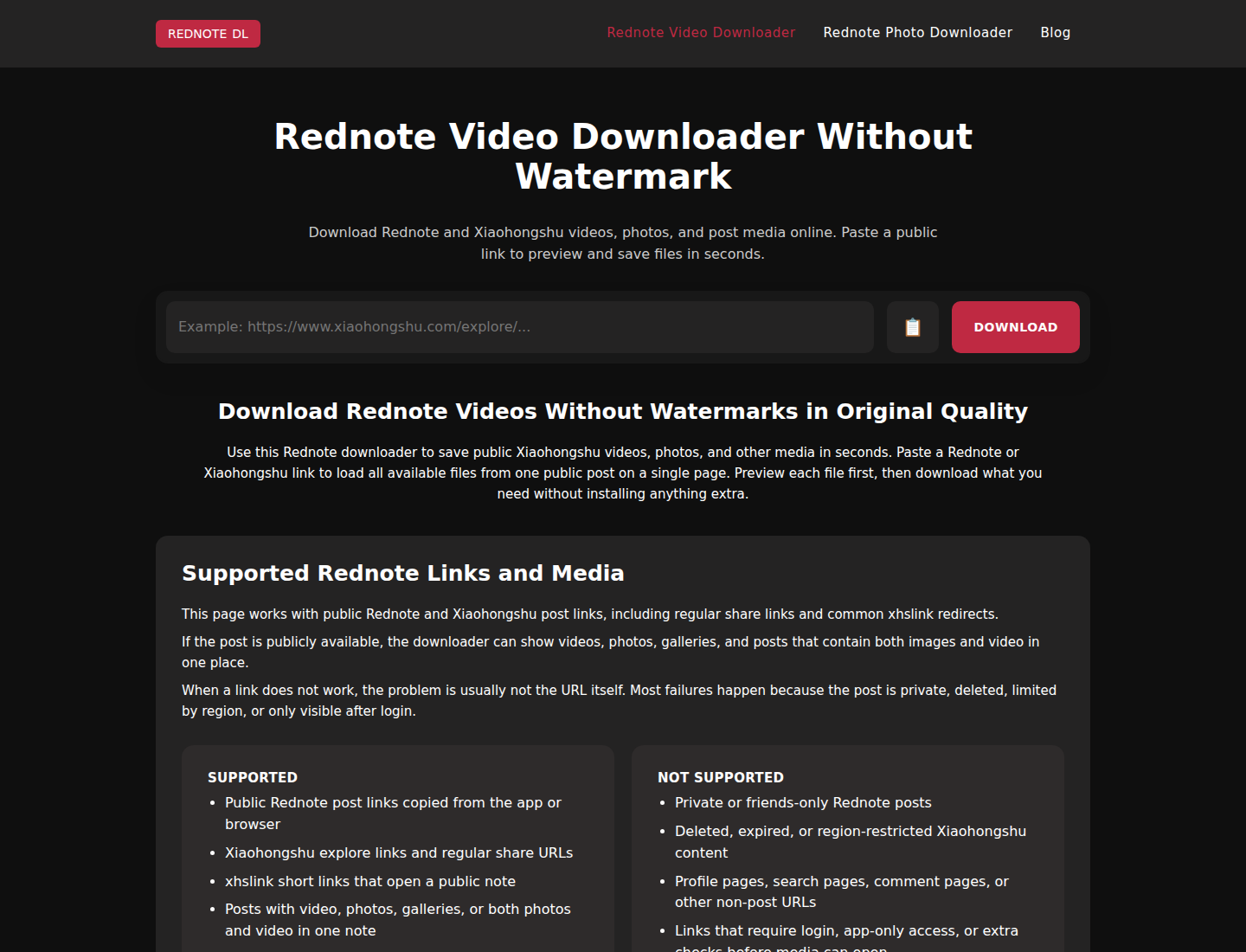
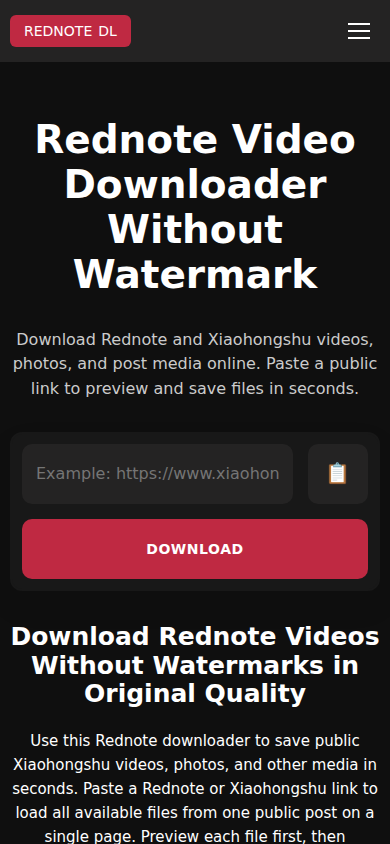
You won't need to install a separate app. Both RedNoteDL pages display all video and image files the service can retrieve from a supported public post, so you can use either page.
Step 1: Copy the Post Link
Open Rednote and find the video or photo post you want to download.
Open the post's sharing actions and select the option for copying its link. In an English interface this may appear as Copy link; in other languages or versions it may use different text or a link icon.
The copied text may contain a short message along with the URL. If you're pasting it manually, make sure you're using the actual link to the post.
Step 2: Open RedNoteDL
Open Chrome, Safari, or another current browser and visit either RedNoteDL page linked above.
Paste the copied URL into the input field, then select Download.
If the post is public and the link format is supported, RedNoteDL will display all video and image files it can retrieve from that post.
Step 3: Download the Video or Photos
When the media appears, choose the file you want to save.
Video posts may offer a downloadable video file, while photo posts may provide individual images.
Once you've downloaded the files, open them to make sure everything saved correctly.
Where Do Downloaded Rednote Files Go?
The download may have worked even if you can't immediately see the file in your gallery. Where it ends up depends on your phone and browser settings.
On iPhone
Safari often saves downloaded files in the Files app.
- Open the Files app.
- Tap Browse and locate the Downloads folder.
- Look for your recently saved video or image.
- Open the file to check it.
- If needed, use the Share menu to save a compatible video or image to Photos.
Depending on your settings, the Downloads folder may be located in iCloud Drive or On My iPhone.
On Android
Most browsers save downloaded files to the Downloads folder by default.
- Open your phone's Files or file manager app.
- Find the Downloads folder.
- Locate the file you recently saved.
- Open it or move it to another folder for easier access.
Some Android devices also show downloaded images and videos automatically in the Gallery app.
Why Can't I Download My Rednote Post?
Sometimes a link doesn't work, even when it's from your own account. A few common issues can explain why.
The Post Is Private
Most browser-based downloaders can only access public posts. If your content is private or restricted, the downloader may not be able to retrieve it.
Check the post's visibility settings and use Rednote's own features where available. Avoid tools that claim to bypass privacy restrictions.
The Link Is Incorrect
Make sure you've copied the link to the actual post rather than your profile page.
If the URL looks incomplete or doesn't open correctly, return to Rednote and copy it again using the Share menu.
The Post Is No Longer Available
Deleted, removed, or otherwise unavailable posts may not be accessible through a downloader.
If this happens, check your phone's gallery, cloud storage, or the editing app you used to create the original content.
The Downloader Doesn't Support the Post
Not every downloader supports every Rednote link or media format. If one fails, it doesn't necessarily mean your post has disappeared.
Try opening the post in a regular browser first to confirm that the link still works.
How to Keep Your Rednote Photos and Videos Organized
Once you've saved your content, a little organization can make it much easier to find later.
Consider creating a dedicated folder for your Rednote posts, with separate subfolders for videos and photos. You can also organize files by month or project.
For important content, keep at least one additional backup on another device or a trusted cloud storage service.
And whenever possible, hold on to the original files you uploaded. Downloaded versions may have different resolutions, compression levels, or watermarks.
Final Thoughts
Saving your own Rednote videos and photos doesn't have to be complicated.
Start by checking whether the Rednote app offers a built-in save option. If it doesn't, a compatible browser-based downloader may help you save media from your public posts.
Whichever method you choose, remember to check the downloaded files and keep a separate backup of anything important.
That way, your photos, videos, and memories won't depend entirely on a single platform.
Sources and Interface Note
Rednote changes its interface over time, and button labels can vary by language, region, device, and app version. This guide therefore describes the action to look for instead of promising that every device will show identical wording.
The device availability and file-location guidance in this article was checked against the official app listings and operating-system support pages below on October 19, 2026.