
Want to share a Rednote video with a friend or save a link to a photo post for later? You don't need to take screenshots or search for the same post again. You can copy its link instead.
Rednote, also known as Xiaohongshu, lets users share individual posts through links that may open in a browser or the app. The process usually takes only a few taps, although the available controls and their labels can vary by device, language, region, and app version.
Here's how to copy a Rednote post link on iPhone, Android, or desktop, along with practical ways to check whether the copied link works.
What Is a Rednote Post Link?
A Rednote post link is a web address that points to a specific video or photo post on Xiaohongshu.
Instead of sending someone a screenshot or asking them to search for a creator's profile, you can share a direct link to the post.
Post links are useful when you want to:
- Share a post. Send an interesting video or photo collection to another person.
- Save a reference. Keep a post so you can revisit a tutorial or recommendation later.
- Switch devices. Open the same public content on another phone or computer.
- Use a compatible tool. Retrieve publicly available media that you own or have permission to save.
Copying a link does not download the post itself. It only places the post address, and sometimes accompanying share text, on your clipboard.
How to Copy a Rednote Link on iPhone
The Rednote app is currently available for iPhone and iPad through Apple's App Store. The exact layout can change between releases, so use the actions below as a guide rather than expecting every screen to look identical.
Step 1: Open the Individual Post
Launch Rednote and find the video or photo post you want to share.
Open the full post rather than leaving it as a card in the feed.
Step 2: Open the Sharing Actions
Look for the post's share control. It may be shown as an arrow or another sharing symbol, and its position can vary between app versions.
Tap it to display the available sharing actions.
Step 3: Copy the Link
Choose the action for copying the post link. In an English interface it may be labeled Copy link. In a Chinese interface it may appear as 复制链接.
If those words are not visible, look for a link or chain icon, or scroll through the available actions. Do not select an option that asks you to copy private account credentials.
Step 4: Paste and Check
Open Safari, Notes, or another text field and paste what you copied.
Rednote may copy the URL by itself or include it in a short sharing message. If you only need the address, select the complete URL without deleting any of its characters.
How to Copy a Rednote Link on Android
The official Android app is distributed on Google Play by the Rednote developer. As on iOS, menu order and labels may differ by app version, device manufacturer, language, and region.
Step 1: Open the Video or Photo Post
Open Rednote and navigate to the post you want to share.
Tap the post so you are viewing the individual post rather than a profile, feed, or search page.
Step 2: Open the Sharing Actions
Tap the post's share control and review the available actions.
On some Android layouts you may need to swipe or scroll through the action row to find the link option.
Step 3: Copy the Link
Select Copy link if it appears in English, or 复制链接 if the app is using Chinese labels. A version with a different interface may show only a link icon.
You can then paste the copied text into Chrome, a messaging app, Notes, or the RedNoteDL input field.
How to Copy a Xiaohongshu Link on Desktop
If the post is available through the Xiaohongshu website, you can usually copy its URL directly from the browser. Web access can vary by post and may require a sign-in.
Step 1: Open Xiaohongshu
Visit https://www.xiaohongshu.com in a current browser and find the video or photo post you want to share.
Step 2: Open the Individual Post
Open the post's dedicated page.
Check the address bar to make sure you are viewing an individual post rather than a search page, feed, or creator profile.
Step 3: Copy the Address
Select the full URL in the browser address bar and copy it.
On Windows and Linux, use Ctrl + L followed by Ctrl + C. On macOS, use Command + L followed by Command + C.
If the website presents its own link-copying action, you can use that instead.
What Does a Rednote Link Look Like?
A link copied from the app may use the xhslink.com short-link domain, while a browser address may use a longer xiaohongshu.com post URL.
You do not need to identify or convert the format before copying it. Keep the complete address unchanged; the separate link-format guide explains post paths, redirects, profiles, and query parameters in detail.
How to Check Whether a Rednote Link Works
Before sharing a link or pasting it into a downloader, check that it points to the intended post.
- Copy the link from the individual Rednote post.
- Open a browser window or tab.
- Paste the complete URL into the address bar.
- Confirm that the expected post or an appropriate Rednote sign-in page appears.
A link that works for you may not be accessible to everyone. Private, deleted, region-restricted, age-restricted, or account-only content may remain unavailable to other users and browser-based tools.
Why Can't I Copy or Open a Rednote Link?
Sharing controls and copied URLs can occasionally behave differently from what you expect.
The Link Action Is Missing
Available actions can vary by app version, post type, language, region, and account state.
Open the individual post, review the complete action list, and install an official Rednote update if one is available. Avoid assuming that another user's screen will match yours exactly.
You Copied the Wrong URL
Make sure the address points to an individual post rather than a creator profile, feed, search page, comment page, or sign-in redirect.
If you are using a computer, open the post itself before copying the address bar.
The Short Link Opens an Unexpected Page
Short links can pass through one or more redirects before reaching the post.
If the final destination is not the post you expected, return to Rednote and copy a fresh link from that post's sharing actions.
The Post Is No Longer Available
A previously working link may stop opening if the creator deletes the post, changes its visibility, or the platform limits access.
A sign-in request or regional restriction can also prevent the post from appearing in a regular browser.
Can You Download Content Using a Rednote Post Link?
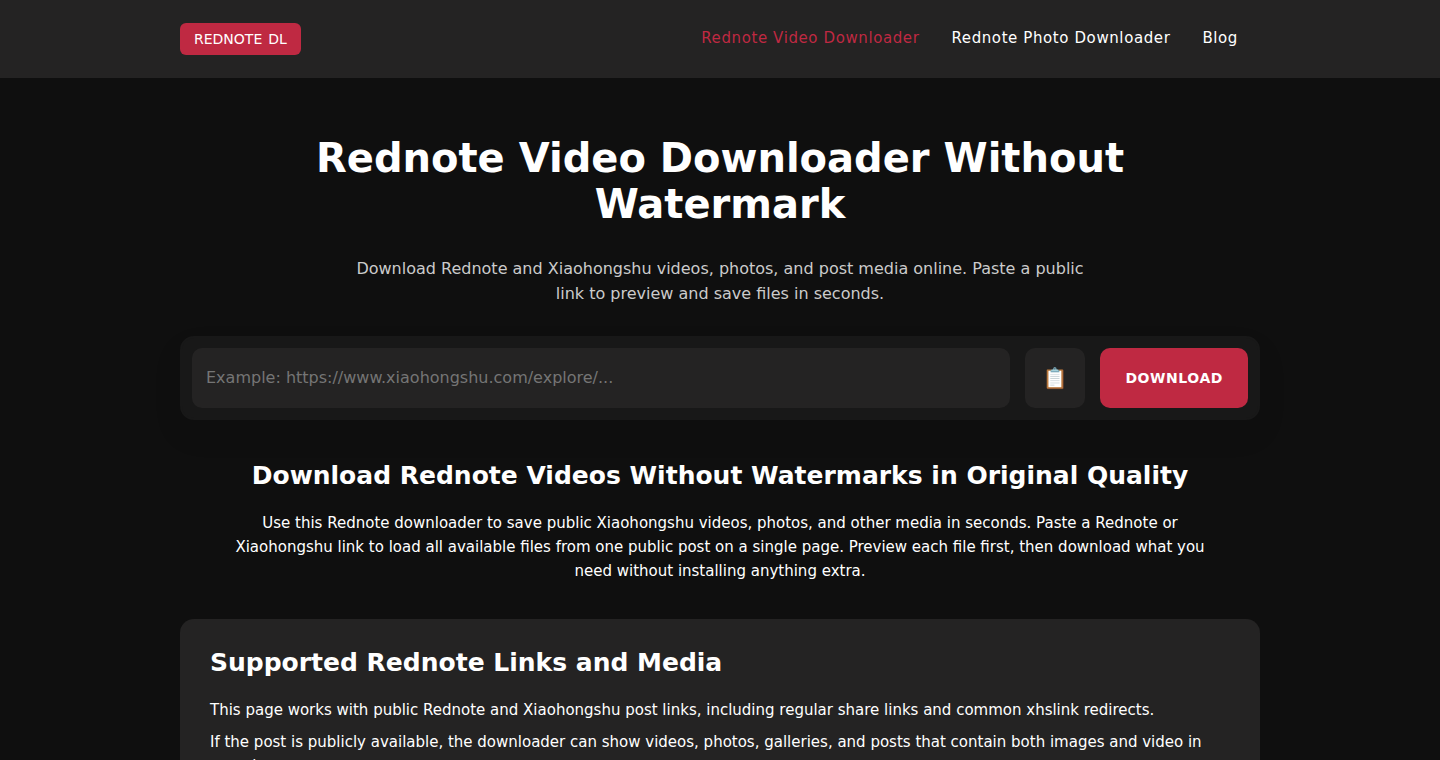
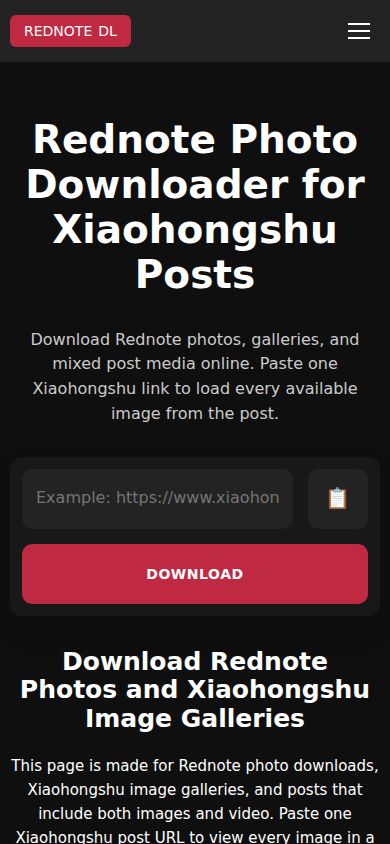
RedNoteDL can use supported public post links to retrieve video and image files that the source makes available.
Copy the complete post link, open either RedNoteDL page below, paste the link into the input field, and select Download. Both pages display all media the service retrieves from the post. A valid URL does not guarantee a result: private access, deleted content, temporary platform restrictions, and unsupported post formats can still prevent retrieval.
Only download content you own or are permitted to save. Copying a public link does not grant permission to republish, modify, distribute, or commercially use someone else's work.
Final Thoughts
To copy a Rednote or Xiaohongshu post link, open the individual post, find its sharing actions, and choose the link-copying option available in your version of the app. On desktop, open the individual post and copy the full address from the browser.
If the link does not work, confirm that you copied the complete post URL and that the post is still publicly accessible.
Once you have a working public link, you can share it, keep it as a reference, open it on another device, or use it with a compatible tool when you have the right to save the content.
Sources and Interface Note
The official store listings confirm that Rednote is available for iPhone and iPad through Apple and for Android through Google Play. They do not provide a stable reference for every item in the in-app share menu.
Because Rednote can change its interface without notice, this guide describes the action to look for and lists Copy link and 复制链接 as possible labels rather than promising identical wording on every device. The sources below were checked on October 19, 2026.